When your Windows 11 PC starts to feel like it's wading through mud, the instinct is often to blame the machine's age. For a small or medium-sized business, that lag isn't just an annoyance—it's a direct hit to your bottom line. Every minute an employee spends waiting for a computer to catch up is a minute of lost productivity, and those minutes add up fast across your entire team.
The good news? It's often not the hardware's fault. Even new Windows 11 machines can get bogged down over time, and the culprits are usually working silently in the background, consuming resources without anyone noticing.
The Hidden Performance Drains
Across Western Pennsylvania and Eastern Ohio, the SMBs we work with often face the same handful of issues that slowly strangle their computers' performance. These problems build up so gradually you barely notice them… until one day, opening a simple spreadsheet feels like a major chore.
- Bloated Startup Processes: Every application you install seems to want a piece of your startup routine. Before an employee has even opened a single program, a dozen apps are creating a digital traffic jam, slowing down the start of their workday.
- Background App Overload: Think of all the apps and services running that you never see. They’re constantly sipping on your PC's memory and CPU power, leaving less for the critical business software you actually need to run, like your accounting software or CRM.
- Outdated Drivers and System Files: Your hardware can't perform at its best without the right software telling it what to do. Neglected updates lead to compatibility conflicts and bottlenecks that choke performance and can even introduce security vulnerabilities.
These slowdowns are incredibly common, but you don't have to live with them. The first step is tackling the low-hanging fruit—the quick fixes that clear out the biggest resource hogs and can give your team an immediate productivity boost. If you're looking for a broader set of tips that apply to more than just Windows, this general computer performance optimization guide is a great resource.
It's worth remembering that Windows 11 has come a long way. Early on, some users—especially businesses with common hardware configurations—felt it was a step back from Windows 10 in terms of speed. Microsoft heard that feedback. By late 2024, internal tests showed Windows 11 PCs were up to 2.3x faster overall than their Windows 10 counterparts, with Office productivity essentially doubling. The OS has evolved; now it's about making sure your specific setup is tuned to take advantage of those gains.
Quick Fixes for an Immediate Speed Boost
Before diving into complex system tweaks, start with the basics. These are the most common performance drains we see in SMB environments. Addressing them first often yields the most noticeable improvement for the least amount of effort, a critical factor when you don't have a dedicated IT team.
| Common Problem | Actionable Solution | Why It Works for SMBs |
|---|---|---|
| Too many apps launch at startup. | Use Task Manager (Ctrl+Shift+Esc), go to the "Startup apps" tab, and disable non-essential programs like Spotify or Adobe updaters. |
Gets your team working faster each morning. A 3-minute boot time adds up to over 12 hours of lost productivity per employee per year, a significant cost for a small business. |
| Temporary files and junk data are clogging the hard drive. | Run the built-in Disk Cleanup tool or Storage Sense to automatically clear out old system files, temporary internet files, and Recycle Bin contents. | A full drive slows down the entire system. Freeing up space—even 10-15 GB—can make Windows more responsive, especially when saving large project files for manufacturing or professional services. |
| Outdated software is causing conflicts. | Run Windows Update to ensure the OS, security definitions, and core drivers are current. Check for app updates in the Microsoft Store. | Fixes known performance bugs and compatibility issues. A single outdated driver can cause system-wide instability and slowdowns, interrupting critical business operations. |
Tackling these three areas can often feel like giving a sluggish PC a shot of adrenaline. Once you've handled these initial steps, you can move on to more advanced configuration tuning to squeeze out even more performance.
Taming Startup Apps and Cleaning Up Storage
Let’s get straight to the low-hanging fruit. Two of the biggest culprits behind a sluggish Windows 11 experience are the swarm of apps that launch at startup and the digital junk that accumulates over time. If a PC feels slow right after booting up, this is where a trusted IT advisor almost always starts looking.
Think about it: when a computer boots, a host of programs often wake up with it. Some are essential, but many are just resource hogs—cloud storage clients, software updaters, communication platforms—that don't need to be running from the get-go. Each one nibbles away at memory and CPU, causing a slow start that drags down performance all day. This is a common pain point for SMBs with limited IT staff to manage every machine.
Pruning Your Startup List
First things first, we need to see what’s actually launching with Windows. The Task Manager is your best friend here.
Press Ctrl + Shift + Esc to open it, then click on the "Startup apps" tab. You'll get a clean list of every single program trying to run the moment you log in. Windows 11 even gives you a handy "Startup impact" column, labeling each app as High, Medium, or Low.
Disabling high-impact, non-essential apps is a massive win. For example, an employee in your finance department probably doesn’t need Adobe Creative Cloud or a gaming platform’s helper service running in the background. To stop one, just right-click it and choose "Disable." Be smart about it—leave your antivirus and critical system tools alone. The goal is a lean startup that gets your team into their work apps without the wait.
This flow chart breaks down the common causes of PC slowdowns and shows why startup processes are a perfect place to begin.
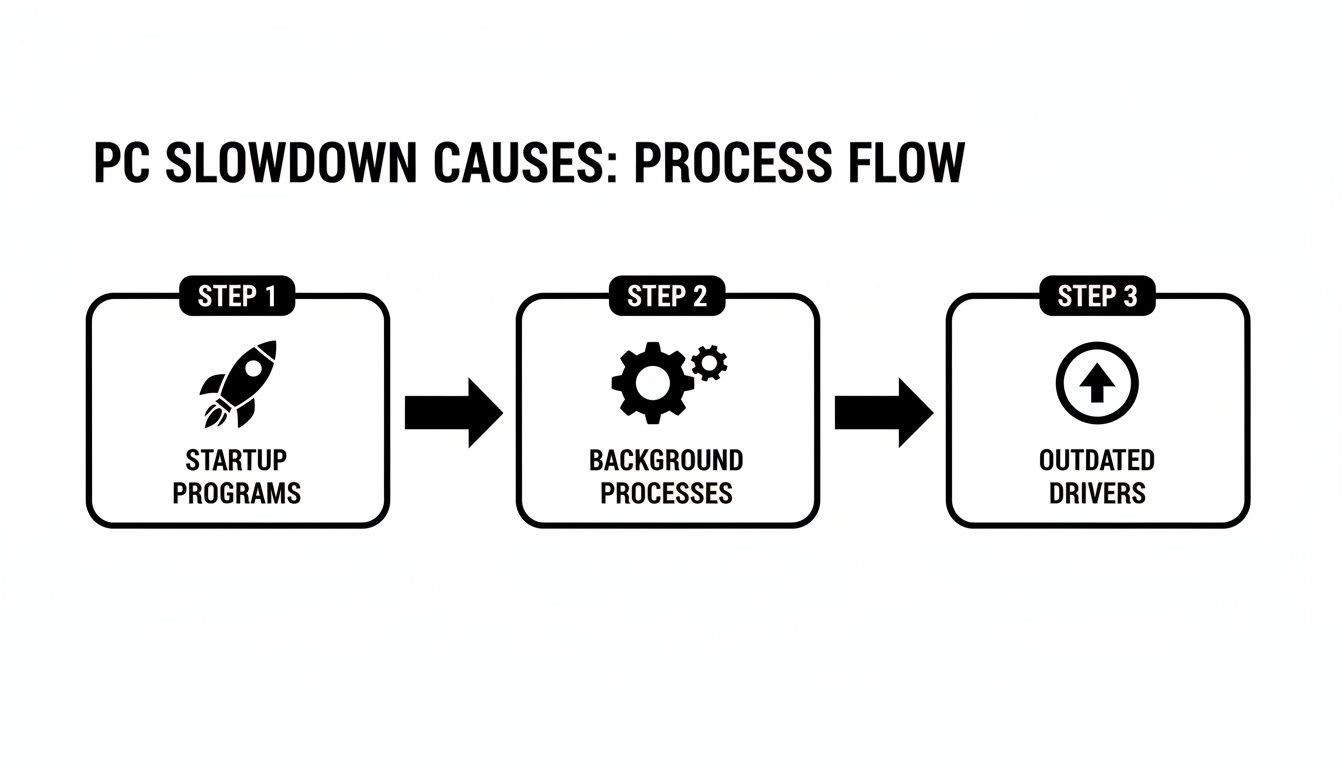
As you can see, what happens at boot has a direct ripple effect on daily performance. Taming it is a simple fix with a big payoff.
Automating Storage Cleanup with Storage Sense
Over time, every Windows machine collects a surprising amount of digital dust: temporary files, old update packages, and other system junk. When a hard drive gets close to full, it doesn't just run out of space; it can seriously bog down the entire system. Thankfully, Windows 11 has a great built-in tool called Storage Sense to handle this for you.
You can find it by navigating to Settings > System > Storage.
Flip it on, and Storage Sense will automatically start freeing up space by getting rid of files you don't need. This includes:
- Temporary system and app files
- Items that have been sitting in the Recycle Bin for over 30 days
- Files in your Downloads folder that haven't been touched in a while
For businesses in fields like manufacturing or professional services that juggle huge project files, this automated cleanup is a game-changer. It stops that slow, creeping performance degradation as local drives fill up, keeping machines snappy without requiring manual intervention from your team.
Setting up a schedule in Storage Sense is a true set-it-and-forget-it solution. It’s a proactive move that maintains system health and delivers consistent performance wins—perfect for any business that doesn't have a dedicated IT team watching over every machine.
Adjusting System Settings for Business Productivity

Now that we’ve cleaned up the digital clutter, let's fine-tune Windows 11. It's time to tell your operating system how to allocate its resources to prioritize what really matters for your business.
This isn't about gaming performance; it's about making sure your CRM, accounting software, and Microsoft 365 suite are running at peak efficiency. These small, strategic tweaks can create a much faster and less frustrating work environment, especially when you're managing multiple workstations with limited IT support.
We've seen it countless times: SMBs don't realize their computers are stuck in "Balanced" power mode by default. While this setting is designed to save a bit of energy, it often does so by throttling performance—a great feature for a laptop on battery, but a real bottleneck for a plugged-in office PC.
Optimize Power Plans for Workstations
For those critical workstations—think of the machines used by your finance team, engineers, or designers—switching the power plan to High Performance can deliver a surprisingly noticeable speed boost. This setting tells Windows to keep the processor running at full tilt and stops it from powering down components to save energy.
You’ll find this option under Settings > System > Power & battery > Power mode. Just be aware of the trade-off. On laptops, this setting will drain the battery much faster, so it's best reserved for devices that live on a docking station. For a team that’s constantly on the move, "Best performance" or "Balanced" is usually the smarter play.
As a trusted IT advisor, this is one of the first things we check on desktop PCs that feel sluggish. It’s a simple change that ensures your hardware investment is actually being used to its full potential during the workday, rather than being held back to save a few watts of power.
Disable Unnecessary Visual Effects
Windows 11 certainly looks slick with its transparent menus, smooth animations, and fading windows. But here's the thing: all that eye candy constantly sips away at your CPU and GPU power.
For the average SMB, these visual frills add zero business value. Disabling them is easy and can make the entire user interface feel much snappier, which is especially helpful on older hardware.
- Go to Settings > Accessibility > Visual effects.
- From there, toggle off both Transparency effects and Animation effects.
The change is immediate. Windows will feel more direct and responsive because it no longer has to render those cosmetic features. When you combine tweaks like this with other efficiency gains, like mastering a few key commands, the difference really adds up. For more on that, check out our guide to essential Windows 11 keyboard shortcuts for productivity.
Fine-Tune Windows Search Indexing
Finally, let’s talk about Windows Search. While it's a fantastic tool, its indexing service can sometimes be a resource hog, constantly scanning files in the background. By default, it scans a huge range of locations, many of which probably aren't relevant to your team's day-to-day work.
You can tell the indexer to ignore locations that don't contain work documents, like network drives used for backups or folders full of temporary application data. This prevents the service from churning away for no reason.
By focusing the indexer’s efforts only on the folders where your team's critical work resides, you dramatically reduce background CPU usage and free up those precious resources for more important tasks.
Balancing Windows Security and System Speed
For any business, tight security is non-negotiable, but it shouldn't come at the cost of crippling your PC's performance. A common myth we encounter with business owners is that a fast computer must be an insecure one.
The reality is that you can—and absolutely should—achieve both. It’s all about being smart and strategic, not just flipping off essential protections and hoping for the best.
This is where a thoughtful approach to Windows Security (formerly Microsoft Defender) and other background processes comes into play. It's built right into the operating system and, when configured correctly, offers fantastic protection with a surprisingly light footprint. You don’t need to disable it; you just need to work with it.
Fine-Tuning Your Defenses
One of the most effective ways to strike this balance is to manage when your antivirus does its heavy lifting. A full system scan kicking off in the middle of a busy workday can bring even a high-end machine to its knees.
Scheduling these intensive scans for off-hours is a simple yet powerful fix.
- Open the Task Scheduler app in Windows.
- Go to Task Scheduler Library > Microsoft > Windows > Windows Defender.
- Double-click on Windows Defender Scheduled Scan, head over to the Triggers tab, and set a new schedule. Pick a time when machines are on but employees aren't actively working, like overnight or during a company-wide lunch break.
This quick tweak ensures your systems get a thorough security check without ever interrupting your team’s workflow.
The key is to make security a background process in every sense of the word. Your team shouldn’t even feel its presence during peak productivity hours. Proactive security should be silent and efficient, protecting your business without becoming a bottleneck itself.
Making Informed Decisions on Background Services
Beyond antivirus scans, Windows 11 runs dozens of services in the background. While many are critical, some can be safely disabled in a typical business environment to free up resources.
But this isn't a task to be taken lightly—disabling the wrong service can lead to system instability or strange, hard-to-diagnose problems.
The principle here is informed action. Before you turn anything off, you need to understand what it does. For example, services related to printing on a PC that's never connected to a printer, or Xbox-related services on a dedicated work machine, are usually safe candidates for disabling.
This same principle applies to your wider security posture. Regularly updating your systems is one of the most critical security functions you can perform, and these updates often come bundled with performance enhancements. To see the bigger picture, check out our expert overview on what patch management is and why it matters for business security.
Ultimately, balancing speed and security isn’t about making sacrifices. It's about implementing a layered, efficient strategy that protects your business without creating unnecessary drag on the very systems you rely on to get work done.
Knowing When to Upgrade Your Hardware
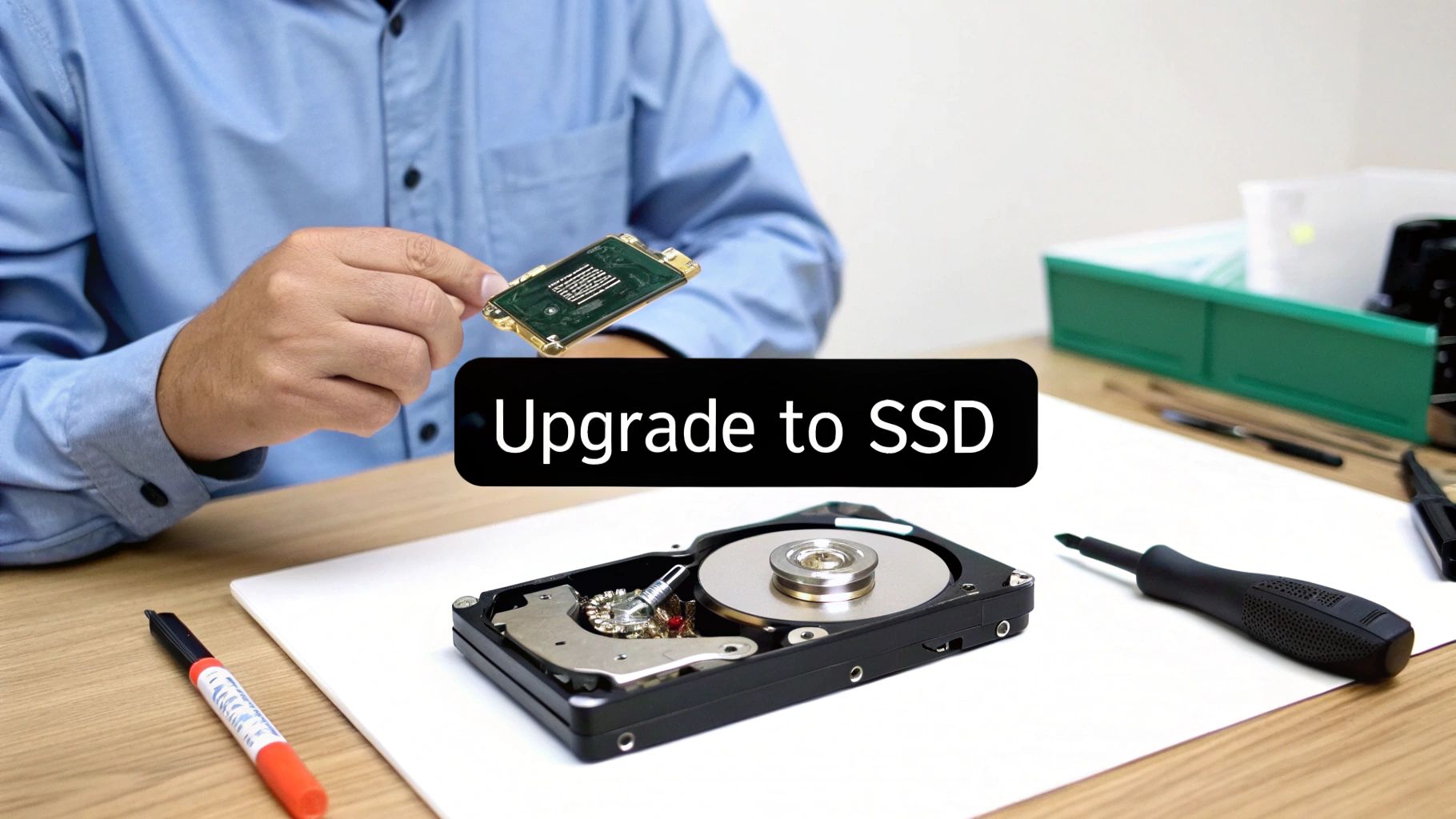
Software tweaks are great for getting more runway out of your existing machines, but you can only optimize so much. Eventually, you’ll hit a wall where the physical hardware is the real bottleneck. For any growing business, recognizing that wall is key to making a smart investment that actually boosts productivity without breaking the budget.
This isn’t about chasing the flashiest new tech. It’s about knowing when a targeted upgrade will deliver a real return on investment by eliminating daily frustrations and extending the useful life of your computers.
The Most Impactful Upgrades for Business PCs
For most office workstations, two hardware upgrades stand head and shoulders above the rest. They directly attack the most common sources of lag that drive employees crazy.
- RAM (Random Access Memory): Think of RAM as your computer's active workspace. If your team is constantly juggling dozens of browser tabs, massive spreadsheets, and a CRM, a lack of RAM is a killer. The system is forced to swap data back and forth from the much slower main storage drive, causing the stuttering that breaks concentration. Moving from 8GB to 16GB of RAM is often the single most noticeable improvement for a heavy multitasker.
- Storage Drive (HDD to SSD): This is the game-changer. If your PCs are still running on old-school mechanical hard disk drives (HDDs), switching to a solid-state drive (SSD) is transformative. Everything—from booting up in the morning to launching applications—becomes dramatically faster.
The difference an SSD makes isn't subtle. We've seen client boot times drop from several minutes to under 30 seconds. That reclaimed time adds up fast, turning into hours of recovered productivity per employee each year, a tangible ROI for any SMB.
Is an Upgrade Worth It? The ROI Calculation
Modern software, including Windows 11 and Microsoft 365, is built to run best on modern hardware. Research shows that newer hardware running Windows 11 can deliver up to 2x faster performance in Microsoft Office applications compared to older setups. When you pair an optimized OS with the right components, the productivity gains are undeniable.
An SSD upgrade isn't just about speed; it’s a strategic investment. Of course, once you upgrade, you'll need a plan for the old components. Figuring out what to do with old hard drives is critical for protecting sensitive business data, whether that means secure wiping or physical destruction.
Ultimately, if software fixes haven't solved your performance woes and your team is still waiting on their technology to catch up, a hardware upgrade is the next logical move. It's a direct investment in your team's efficiency and a smart way to get the most out of your IT assets.