For many small and mid-sized businesses in Western Pennsylvania and Eastern Ohio, Microsoft 365 is the engine of productivity. It’s where you communicate, collaborate, and store critical business data. A common, and dangerous, misconception is that Microsoft's default settings are enough to protect you from sophisticated cyber threats like ransomware, phishing, and business email compromise. The reality is that the ultimate responsibility for securing your data falls squarely on your shoulders. Without proactive configuration, your M365 environment has significant security gaps, leaving your organization vulnerable to costly breaches that disrupt operations and erode client trust.
This guide isn't about fear-mongering; it's about empowerment. We'll provide a prioritized, actionable roundup of the most critical office 365 security best practices you can implement today, tailored for the unique budget and resource constraints of an SMB. You will learn how to move beyond basic security and implement robust controls that genuinely protect your business.
We will cover essential strategies including:
- Identity Protection: Implementing Multi-Factor Authentication (MFA) and Conditional Access to ensure only authorized users access your data.
- Threat Defense: Deploying advanced tools like Microsoft Defender to stop phishing and malware before they reach your team.
- Data Governance: Using Data Loss Prevention (DLP) policies and endpoint management to control where sensitive information goes.
- Monitoring and Response: Setting up audit logs, alerts, and an incident response plan to detect and react to threats quickly.
Consider this your roadmap to transforming your Office 365 environment from a potential liability into a secure, resilient foundation for your business.
1. Enable Multi-Factor Authentication (MFA) for All Users
The single most impactful security measure you can take to protect your Microsoft 365 environment is to enable Multi-Factor Authentication (MFA) for all user accounts. Passwords alone are no longer sufficient protection. With threats like phishing and credential stuffing on the rise, a compromised password can give an attacker direct access to your company's sensitive data, emails, and applications. MFA acts as a critical second line of defense, requiring users to verify their identity with a second factor beyond just their password.

This additional verification step makes it significantly harder for unauthorized individuals to gain access, even if they have a valid password. For a deeper understanding of MFA and how it protects your Microsoft 365 environment, read our guide on What is Multi-Factor Authentication (MFA). The impact is immediate and profound; Microsoft reports that MFA can block over 99.9% of account compromise attacks.
How to Implement MFA Effectively
A successful MFA rollout requires a strategic approach, especially in a small or midsize business where disruption can be costly. The goal is to enhance security without hindering productivity.
- Phased Rollout: Start by enforcing MFA on administrator and executive accounts. These high-privilege accounts are prime targets for attackers. Once your IT team is comfortable with the process, expand the requirement to the entire organization.
- Prioritize Authenticator Apps: While SMS text messages are an option, they are vulnerable to SIM-swapping attacks. Encourage or require the use of more secure authenticator apps like Microsoft Authenticator or Google Authenticator.
- Leverage Conditional Access: For businesses with Microsoft 365 Business Premium or higher licenses, Conditional Access policies can fine-tune your MFA requirements. For example, you can enforce MFA only when a user logs in from an unfamiliar location or an unmanaged device, creating a smarter, less intrusive security posture.
- Provide User Training: The biggest hurdle to MFA adoption is often user resistance. Provide clear, simple documentation and a brief training session to explain why it's necessary and how to set it up. A proactive approach prevents frustration and help desk tickets.
2. Implement Conditional Access Policies
While MFA is a powerful shield, Conditional Access policies are the intelligent system directing that shield. Think of them as the "if-then" logic for your Microsoft 365 security. Instead of applying the same rules to every login attempt, Conditional Access analyzes signals like the user's location, device health, and the application they're trying to access. It then dynamically enforces security controls based on the real-time risk of that specific access request.
This granular control is a cornerstone of a modern Zero Trust security model and one of the most effective Office 365 security best practices. For a small or midsize business, this means moving beyond a rigid, one-size-fits-all security posture to one that is flexible, intelligent, and less intrusive for your employees. A healthcare practice, for instance, can configure policies to require MFA only for external network access, striking a perfect balance between security and user convenience while maintaining HIPAA compliance.
How to Implement Conditional Access Effectively
Implementing Conditional Access requires a thoughtful strategy to avoid accidentally locking out legitimate users. The goal is to create smart policies that strengthen security without disrupting workflow. Note that this feature requires Microsoft 365 Business Premium or higher licenses.
- Start in Report-Only Mode: Before enforcing any policy, deploy it in "Report-only" mode. This allows you to monitor the potential impact on users without actually blocking access, giving you valuable insights to fine-tune the rules and prevent business disruption.
- Secure High-Privilege Accounts: Your first enforced policy should target administrative roles. Create a rule that unconditionally requires MFA for all global administrators and other high-privilege accounts, regardless of their location or device. This is a non-negotiable security layer.
- Block High-Risk Logins: Create policies that automatically block logins from anonymous IP addresses or locations where your business does not operate. A manufacturing firm in Western Pennsylvania can successfully block suspicious login attempts from foreign IPs using this simple but effective policy.
- Require Compliant Devices: Integrate Conditional Access with Microsoft Intune (part of the Business Premium license). You can then create policies that only allow access to company data from devices that are managed and meet your security compliance standards, such as having encryption and antivirus enabled.
3. Deploy Microsoft Defender for Office 365
While Microsoft 365 comes with baseline email protection, modern cyber threats require a more sophisticated defense. Deploying Microsoft Defender for Office 365 provides advanced, AI-driven protection against the most dangerous email-based attacks, such as phishing, ransomware, and business email compromise (BEC). It moves beyond simple spam filtering to offer real-time detection, detonation sandboxing for attachments, and behavioral analysis to stop zero-day threats before they reach your employees' inboxes.
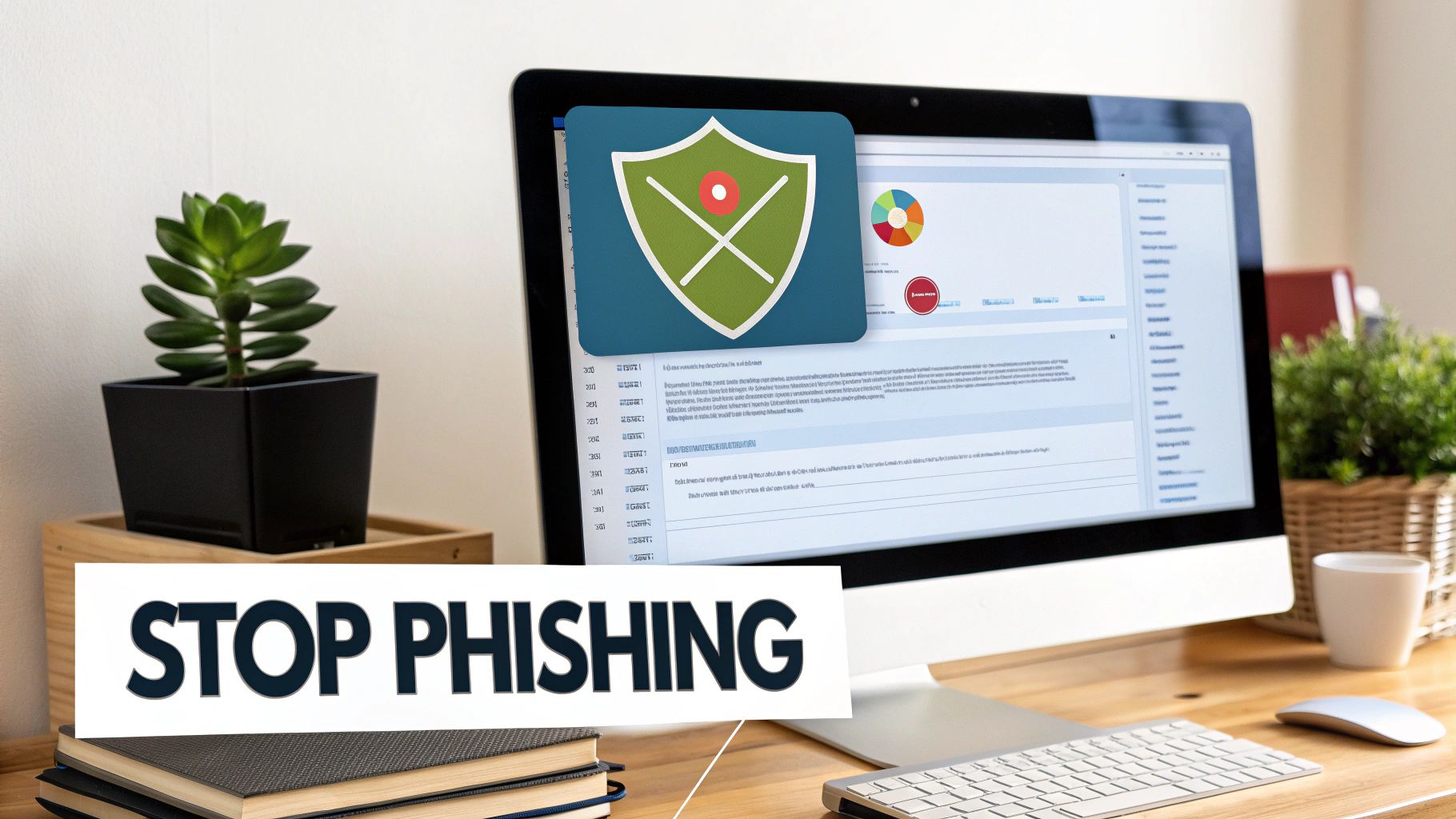
This enhanced security layer is essential for any small or midsize business, as email remains the number one attack vector. For example, a 75-person accounting firm in Western PA using Defender Plan 2 successfully blocked 18 sophisticated BEC attempts targeting their CFO over just six months. The platform's advanced features, like Safe Attachments and Safe Links, are critical components of a comprehensive Office 365 security best practices strategy.
How to Implement Defender for Office 365 Effectively
Proper configuration is key to maximizing the value of Defender for Office 365. Simply turning it on is not enough; you must tailor its policies to your organization's specific risk profile and operational needs.
- Enable Comprehensive Safe Attachments: Configure a Safe Attachments policy that applies to all users and includes internal emails. This is crucial for catching threats that originate from a compromised account within your supply chain.
- Expand Safe Links Protection: Don't limit Safe Links to just email. Extend its URL rewriting and scanning capabilities to Microsoft Teams messages and documents stored in SharePoint Online to ensure broad protection across collaboration platforms.
- Utilize Campaign Views: Make it a monthly practice to review the Campaign Views dashboard. This powerful tool identifies coordinated phishing attacks targeting your organization, allowing you to identify patterns, brief executives on emerging threats, and proactively train vulnerable users.
- Configure Proactive Alerts: Set up alerts for high-confidence phishing and malware detections to immediately notify your IT team or managed service provider. This enables rapid incident response, which is critical for containing potential breaches.
4. Enforce Data Loss Prevention (DLP) Policies
Employees send and share information constantly, and most of the time, it's a routine part of business. However, a single accidental email containing sensitive data sent to the wrong recipient can lead to significant financial, legal, and reputational damage. Data Loss Prevention (DLP) policies act as an automated safety net, identifying, monitoring, and protecting sensitive information across your Microsoft 365 environment, including Outlook, Teams, SharePoint, and OneDrive.
DLP policies use pattern matching to recognize confidential data like credit card numbers, Social Security numbers, or patient health information. Once detected, the system can automatically block the file from being shared, warn the user, or encrypt the email. For instance, a healthcare practice in our region can use DLP to block attempts to email patient records to personal Gmail accounts, preventing massive HIPAA compliance violations. These policies are a cornerstone of modern office 365 security best practices.
How to Implement DLP Effectively
A successful DLP strategy is about preventing accidental data leaks without disrupting legitimate business workflows. It requires a thoughtful approach that balances security with productivity.
- Start in Test Mode: Begin by running your DLP policies in "test mode" with policy tips. This setting will notify users when they are about to violate a policy but won't block the action. Run this for two to four weeks to gather baseline data on false positives and educate users before enabling full enforcement.
- Create Granular Policies: Avoid a one-size-fits-all approach. Develop separate policies for different types of sensitive information, such as financial data, protected health information (PHI), and intellectual property (IP). Each policy can have a graduated response, from simple notifications to strict blocking, depending on the data's sensitivity.
- Use Business Justification Prompts: Configure your policies to allow users to override a low-severity block if they provide a valid business justification. This gives employees flexibility while ensuring that all exceptions are logged for security review.
- Focus on External Threats: Initially, configure your policies to focus on data being shared outside your organization. You can exclude internal domains and secure collaboration platforms like SharePoint and Teams from blocking rules, targeting the highest-risk channels like external email and file-sharing apps first. For a more comprehensive approach to preventing data loss, you can learn more about developing a data protection strategy.
5. Conduct Regular Security Audits and Reviews of Permissions
Your Microsoft 365 environment is dynamic; employees join, change roles, and leave, while projects start and end. Without regular oversight, these changes lead to "permission creep," where users accumulate access rights they no longer need. Conducting regular security audits and permission reviews is a fundamental practice for ensuring that access levels remain aligned with current business needs and the principle of least privilege. This proactive process prevents sensitive data from being exposed to orphaned accounts or over-privileged users.
These audits act as a critical checkpoint to catch configuration drift and close security gaps before they can be exploited. For example, a local manufacturing company might discover several shared mailboxes from completed projects that are still accessible to active users. A thorough audit can identify and remediate this risk immediately. Regularly reviewing who has access to what is one of the most effective office 365 security best practices for preventing data breaches caused by internal threats or compromised accounts.
How to Implement Audits and Reviews Effectively
A systematic approach to audits turns them from a time-consuming chore into a powerful, recurring security function. The key is to establish a clear cadence and leverage automation where possible, which is crucial for SMBs with limited IT staff.
- Automate Access Reviews: Use Azure AD Access Reviews (available in higher-tier licenses) to schedule quarterly reviews. This system automatically asks managers to attest whether their team members still require access to specific groups, applications, and roles, putting the responsibility in the hands of those who know best.
- Audit External Sharing: Run monthly reports on external sharing activity in SharePoint and OneDrive. A manufacturing company used this practice to identify and remove over 340 Teams guest accounts from completed projects, drastically reducing their external attack surface.
- Review Administrative Roles: On a quarterly basis, audit all administrative roles. Ensure you are following the principle of least privilege by assigning granular roles (e.g., SharePoint Administrator) instead of a global one. Verify that every administrator has a separate, non-privileged user account for daily tasks.
- Cross-Reference with HR: Integrate your offboarding process with a monthly user audit. Cross-reference your list of terminated employees with active Microsoft 365 accounts to ensure all access has been revoked promptly and completely. For a comprehensive guide, explore our IT Infrastructure Audit Checklist.
6. Implement Email Authentication Protocols (SPF, DKIM, DMARC)
Business Email Compromise (BEC) and phishing attacks often begin with a simple but devastating tactic: email spoofing. Attackers forge the "From" address to make an email appear as if it came from a trusted source, like your CEO or a vendor. Email authentication protocols such as SPF, DKIM, and DMARC work together to verify that emails claiming to be from your domain are legitimate, stopping these impersonation attacks before they reach an inbox.
Implementing these protocols is a critical Office 365 security best practice that protects your brand reputation and prevents fraudsters from using your domain to attack your employees, partners, and customers. Think of it as a digital seal of authenticity for every email your organization sends. For example, a local manufacturing firm identified a compromised partner system sending unauthorized mail on its behalf purely through DMARC reporting, preventing a potential supply chain attack.
How to Implement Email Authentication Effectively
Deploying these DNS-based records requires careful planning to avoid disrupting legitimate email flow from various business systems. A methodical approach ensures all legitimate mail is authenticated while fraudulent mail is blocked.
- Start with DMARC in Monitor Mode: Begin by creating a DMARC record with a
p=nonepolicy. This "monitor-only" mode tells receiving mail servers to send you reports on all emails using your domain, both legitimate and fraudulent, without blocking anything. This discovery phase is crucial for identifying all services that send email on your behalf. - Inventory All Email Senders: Document every system that sends email from your domain. This includes not just Microsoft 365 but also marketing automation platforms (like Mailchimp or HubSpot), HR systems, CRMs, and any third-party applications. Each one will need to be properly configured.
- Configure SPF and DKIM for All Senders: Once you have your inventory, create or update your SPF (Sender Policy Framework) record to include all authorized mail servers. Then, work with each third-party service to implement DKIM (DomainKeys Identified Mail) signing, which adds a cryptographic signature to your emails.
- Gradually Enforce DMARC: After monitoring reports for at least 30 days and ensuring all legitimate senders are authenticated, you can slowly increase your DMARC policy's strength. Move from
p=nonetop=quarantine(sends unauthenticated mail to spam) and finally top=reject(blocks unauthenticated mail entirely). This phased approach minimizes the risk of blocking important emails.
7. Enable Audit Logging and Monitor Security Events
You cannot protect what you cannot see. Microsoft 365 audit logging is your digital security camera, capturing a detailed record of user and administrator activities across your entire environment. It answers the critical questions of who did what, when, and from where. For small businesses, actively monitoring these logs is one of the most effective office 365 security best practices for detecting breaches in progress, investigating incidents, and meeting compliance requirements.
Enabling and reviewing these logs provides crucial visibility that can be the difference between a minor incident and a catastrophic data breach. For example, a healthcare practice might notice unusual PowerShell commands being run from an admin account at 3 AM through its logs. This provides the early warning needed to lock the account and investigate, preventing a potential ransomware attack before it can launch.
How to Implement Effective Audit Logging and Monitoring
A proactive monitoring strategy transforms audit logs from a passive record into an active defense mechanism. The goal is to detect suspicious activity quickly without getting overwhelmed by a sea of data.
- Activate Unified Audit Logging Immediately: This is a non-negotiable first step. If it's not on, you have zero visibility into user and admin actions. It should be enabled by default, but it's crucial to verify it's active in the Microsoft Purview compliance portal.
- Create Critical Alerts: You don’t need to watch every single log entry. Instead, set up automated alerts for high-risk activities. Key alerts to create include notifications for the creation of new inbox forwarding rules (a common attacker tactic), bulk file deletions, administrative role changes, and "impossible travel" logins.
- Schedule Regular Reviews: Designate a specific time each month to review key activities. For example, use eDiscovery tools to search for policy violations or suspicious external sharing patterns. Investigating all administrative role changes within 24 hours is a critical discipline, as these accounts are high-value targets.
- Consider Advanced Tools for Retention: By default, logs are retained for a limited time. For long-term analysis and compliance, consider exporting logs to a solution like Azure Sentinel. This allows you to correlate Microsoft 365 data with other security signals from your network for a more comprehensive view of potential threats.
8. Secure External Sharing and Guest Access
Collaboration is essential for modern business, but uncontrolled external sharing can create significant security vulnerabilities. Every time an employee shares a file or adds a guest to a Teams channel, they are extending your security perimeter. Securing external sharing and guest access means implementing strict controls over who can share, what can be shared, and with whom, ensuring that your sensitive data doesn't fall into the wrong hands.

This process involves moving from a default "open" model to a more restrictive "zero trust" approach, where access is granted on a need-to-know basis and is continuously verified. For example, a professional services firm that required MFA for all guest accounts successfully caught three attempted compromises of their partners' accounts when the attackers failed the MFA challenge. These controls are a cornerstone of modern Office 365 security best practices, preventing data leakage and unauthorized access from external collaborators.
How to Implement Secure Sharing Effectively
A granular approach to external sharing balances productivity with security, allowing necessary collaboration while minimizing risk. It's about setting clear, enforceable boundaries rather than blocking access entirely.
- Disable Anonymous Sharing: The "Anyone with the link" option is the riskiest sharing setting. Disable it organization-wide in the SharePoint and OneDrive admin centers and require users to share with "Specific people" who must authenticate to access the content.
- Restrict Sharing by Domain: In Microsoft Teams and SharePoint, you can create an allow-list of approved partner domains. This ensures employees can only collaborate with vetted organizations, preventing accidental sharing with personal email addresses or unauthorized third parties.
- Enforce Guest Access Reviews: Don't let guest access last forever. Configure access reviews in Azure AD to automatically require sponsors to re-approve guest access every 90 or 180 days. Inactive or unnecessary guests are automatically removed, shrinking your attack surface.
- Require MFA for Guests: Just as you protect your own employees, enforce MFA on all guest accounts. This can be configured through Conditional Access policies and provides a critical layer of protection if a partner's account is compromised.
9. Deploy and Maintain Mobile Device Management (MDM) with Intune
In an era of remote work and bring-your-own-device (BYOD) policies, your company's data no longer lives just on office computers. It travels on laptops, tablets, and smartphones, creating numerous new endpoints that must be secured. Mobile Device Management (MDM) through Microsoft Intune is a critical component of a modern Office 365 security best practices strategy, extending your security perimeter to every device that accesses corporate resources.
MDM allows you to enforce security policies on both personal and corporate-owned devices. This ensures that any device connecting to your Office 365 environment meets your minimum security standards, such as requiring screen lock timeouts, data encryption, and up-to-date operating systems. For example, a healthcare practice can use Intune to enforce encryption and block access from non-compliant personal devices, significantly improving its HIPAA compliance posture.
How to Implement MDM Effectively
A successful Intune rollout is about finding the right balance between security and user convenience. It's not about spying on employees; it's about protecting sensitive company data wherever it goes.
- Start with Conditional Access: The most effective first step is to create a Conditional Access policy that requires devices to be "marked as compliant" in Intune before they can access sensitive apps like Outlook or SharePoint. This immediately closes a major security gap.
- Create Tiered Policies: Not all users have the same level of data access. Implement stricter compliance policies for executives and finance team members, while applying more moderate settings for general users. This risk-based approach focuses your efforts where they matter most.
- Set Minimum OS Versions: Prevent users from connecting with devices running outdated and vulnerable operating systems. Enforcing minimum OS version requirements ensures that critical security patches are installed, protecting against known exploits.
- Enforce Core Security Settings: Mandate essential protections on all enrolled devices. Require data encryption, set a screen lock inactivity timeout of 10-15 minutes, and block access from "jailbroken" or "rooted" devices that have had their built-in security features disabled.
- Conduct a Pilot Rollout: Before enforcing policies organization-wide, test them with a small pilot group of 10-20 users. This allows you to identify any potential issues and refine your policies without disrupting the entire company. For a deeper dive into securing all company devices, explore our guide on endpoint security management.
10. Establish an Incident Response Plan and Regular Security Testing
Having robust preventative measures is crucial, but no security posture is impenetrable. An incident response (IR) plan is your organization's documented playbook for how to detect, investigate, and recover from a security breach. Without one, teams react with panic and confusion, leading to costly mistakes, extended downtime, and reputational damage. A well-defined plan ensures a coordinated, efficient, and calm response when an incident occurs.
A documented plan turns chaos into a structured process. For example, a firm with a tested IR plan might recover from a ransomware attack in under a day, while a similar-sized company without one could take over a week and suffer significant data loss. This preparedness is a non-negotiable component of modern Office 365 security best practices, ensuring your business can withstand an attack and resume operations swiftly.
How to Implement an Incident Response Plan Effectively
Developing a plan is the first step; ensuring it works requires ongoing commitment. The goal is to build muscle memory around your security procedures so that your team can execute flawlessly under pressure.
- Assign Clear Roles and Responsibilities: Designate an Incident Response Coordinator, typically a senior IT or operations manager. Document who owns each phase of the response: initial detection (IT/Help Desk), investigation (IT Security), escalation (Leadership), and communications (Legal/PR). This clarity prevents critical tasks from being overlooked.
- Develop Actionable Playbooks: Create simple, step-by-step decision trees for different incident types like ransomware, phishing, or a business email compromise. Define severity levels based on factors like whether critical systems are down or if customer data is at risk. To help you get started, explore this practical incident response plan template for your business.
- Pre-Engage External Experts: Don't wait for a crisis to find help. Establish retainer agreements with a cybersecurity forensics firm and a breach counsel beforehand. This not only ensures a faster response but also provides access to their expertise at a more favorable rate.
- Test, Test, and Test Again: A plan that sits on a shelf is useless. Run at least one tabletop exercise annually, where your team walks through a simulated incident. More importantly, test your backup and recovery procedures quarterly to verify that your data is recoverable. This validation is one of the most critical yet often-missed security tasks.
Your Next Steps Toward a More Secure Microsoft 365 Environment
Navigating the landscape of Microsoft 365 security can feel like a monumental task, especially for small and midsize businesses in Western Pennsylvania and Eastern Ohio. The sheer volume of settings, policies, and potential threats can be overwhelming. However, by focusing on a prioritized set of office 365 security best practices, you can build a formidable defense that protects your data, your employees, and your reputation. This article has guided you through the most critical layers of protection, from foundational identity controls to advanced threat mitigation and incident response.
The journey to a secure digital workspace is not a single project with a finish line; it is an ongoing process of adaptation and refinement. The threat landscape evolves, and so must your defenses. The practices we've discussed, such as enabling Multi-Factor Authentication (MFA) and implementing Conditional Access policies, are not just checkboxes on a list. They represent a fundamental shift toward a proactive, zero-trust security posture where access is continuously verified. Similarly, deploying tools like Microsoft Defender for Office 365 and establishing robust email authentication protocols (SPF, DKIM, DMARC) transforms your email from your biggest vulnerability into a well-defended fortress.
Your SMB Security Checklist: Where to Start Today
Understanding these concepts is the first step, but implementation is where security truly takes hold. For many SMBs, the biggest hurdle is knowing where to begin. Your immediate priorities should be the high-impact, low-complexity items that deliver the most significant security gains right away.
Your Top 3 Priorities:
- Mandate MFA for All Users: If you do nothing else, do this. It is the single most effective way to prevent unauthorized account access.
- Configure Email Authentication (SPF, DKIM, DMARC): This is essential for protecting your domain from being used in phishing attacks and for improving your email deliverability.
- Enable Audit Logging: You cannot protect what you cannot see. Activating audit logging provides the visibility you need to detect and investigate suspicious activity.
Once these foundational elements are in place, you can progressively layer on more sophisticated controls. This includes developing Data Loss Prevention (DLP) policies to protect sensitive information, using Intune to manage and secure devices accessing company data, and formalizing an incident response plan. Each practice builds upon the last, creating a comprehensive security framework that is both strong and resilient. Remember, the goal is progress, not perfection. A phased, strategic approach is far more sustainable than attempting to implement everything at once.
The Value of a Proactive Security Partnership
For business leaders juggling operations, sales, and strategy, becoming a full-time cybersecurity expert simply isn't feasible. The complexities of Microsoft 365 administration, coupled with the constant need for monitoring and response, require dedicated expertise. This is where a strategic partnership can be a game-changer.
Embracing these office 365 security best practices is not about adding complexity; it's about building resilience. A secure environment fosters trust with your clients, empowers your employees to work safely from anywhere, and protects the long-term viability of your business. It is a strategic investment in your company's future.
By engaging with a managed IT service provider, you gain access to a team of specialists who live and breathe this work. They can help you translate these best practices into a tangible security roadmap tailored to your specific business needs, budget, and compliance requirements. This allows you to offload the technical burden of implementation, monitoring, and management, freeing you and your team to focus on what you do best: growing your business. Securing your digital assets is a shared responsibility, and you don't have to carry it alone.
Ready to move from planning to action? At Eagle Point Technology Solutions, we specialize in implementing and managing these exact office 365 security best practices for SMBs across our region. Schedule a complimentary security consultation with our team to identify your biggest risks and build a practical, effective plan to secure your business.