Is a slow computer grinding your team's productivity to a halt? The first step isn't to buy new hardware—it's to diagnose the real problem. By using built-in tools like Task Manager to pinpoint bottlenecks, cleaning up unnecessary software, reining in startup programs, and considering smart hardware upgrades like more RAM or a Solid-State Drive (SSD), you can fix the most common causes of slowdowns. These steps deliver real, noticeable speed improvements that directly impact your business's bottom line.
Your Guide to Diagnosing and Boosting PC Performance
A slow computer isn't just an annoyance; it's a productivity killer that hits your bottom line. Every minute an employee spends staring at a loading screen is a minute they aren't serving clients or driving revenue. For a small or medium-sized business, this slow bleed of downtime adds up to a massive—and often invisible—operational cost.
We hear this story all the time from business owners across Western Pennsylvania and Eastern Ohio. A key team member's computer, once a reliable workhorse, now chugs and sputters when they try to multitask. Even simple tasks, like switching between a spreadsheet and an email, cause the system to hang, grinding their workflow to a halt and creating a ton of frustration.
Identifying the Performance Bottleneck
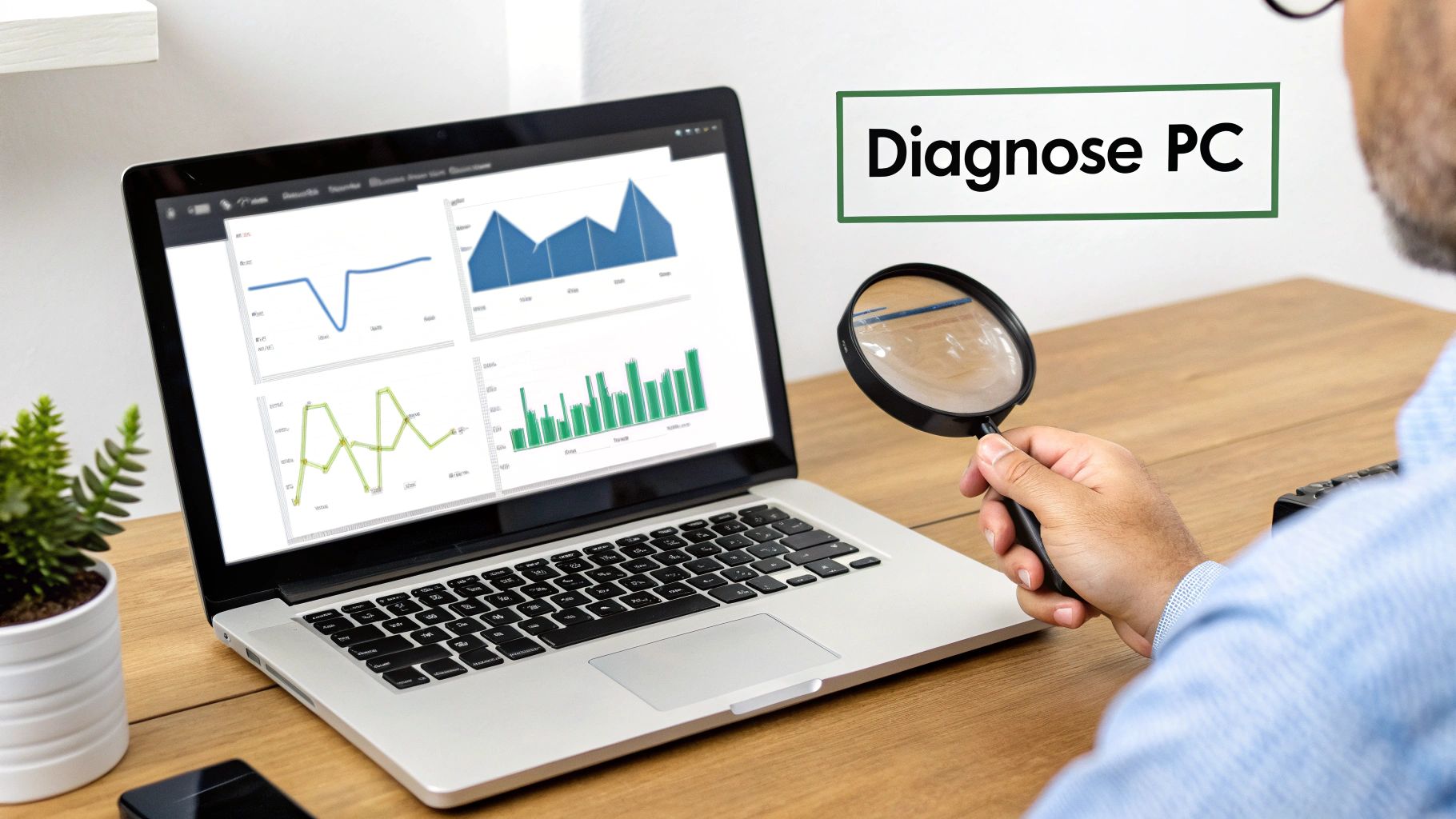
Before you can fix the problem, you have to know what's causing it. Buying new hardware without a proper diagnosis is like trying to fix a strange engine noise by getting new tires—a waste of time and money. The key is to find the bottleneck, the specific component holding everything else back.
Luckily, Windows provides the tools to play detective right out of the box.
Your best friend here is the Task Manager. The quickest way to open it is by pressing Ctrl+Shift+Esc. Once it's open, click on the "Performance" tab to get a live look at your system's vital signs.
Here’s what you should be looking for:
- CPU (Central Processing Unit): If you see this consistently pegged at 90-100% during normal work, your processor is struggling to keep up. This often happens when running demanding software or when too many processes are humming away in the background.
- Memory (RAM): Is your memory usage constantly maxed out? That means your computer doesn't have enough RAM to juggle all the active applications. It's forced to use a chunk of your hard drive as slow, temporary memory (called a "page file"), which causes a major slowdown.
- Disk (Storage): A disk usage of 100% is a dead giveaway that your storage drive can't handle all the read and write requests being thrown at it. This is a classic symptom of an old-school mechanical hard drive (HDD) that just can't cope with a modern operating system.
Expert Insight: In our experience working with SMBs, the single most common and impactful bottleneck we see is an outdated storage drive. Swapping a traditional spinning HDD for a modern Solid-State Drive (SSD) provides the biggest performance jump for the money, slashing boot times and making applications load in a fraction of the time.
If you're dealing with a sluggish machine, a great resource with more detail can be found in this practical guide on how to fix a slow laptop.
By spending just a few minutes in Task Manager, you can stop guessing and start identifying the real problem. This diagnostic-first approach ensures that any fix you apply—whether it's a software tweak or a hardware upgrade—is targeted, effective, and gives you the best return on your investment. This guide will walk you through the practical next steps for each of these common issues.
Mastering Software and Operating System Health
Some of the most dramatic performance boosts don't come from a pricey hardware overhaul. They come from simple, consistent software hygiene.
It's a familiar story: over time, a once-speedy workstation gets bogged down by a slow accumulation of digital junk. Unused apps, programs that launch on their own, and a mountain of temporary files all quietly eat up precious resources. For a small business with limited IT staff, this "digital clutter" isn't just an annoyance; it translates directly into slower boot times, lagging applications, and frustrated employees.
The good news is that reclaiming that lost performance is surprisingly straightforward. It doesn’t require a dedicated IT department or deep technical expertise—just a repeatable maintenance routine that anyone can follow.
Clear Out Unnecessary Applications
Every business PC has them: trial software that expired months ago, old project-specific tools, and pre-installed "bloatware" from the manufacturer. Each one of those programs takes up disk space, and worse, many run background processes that consume CPU and RAM even when you aren't using them.
A regular audit is a quick win. On a Windows machine, just go to "Add or remove programs" and take an honest look at the list. If you see software your team hasn't touched in ages, get rid of it. This one step can free up gigabytes of storage and eliminate those hidden resource hogs for good.
Tame Your Startup Programs
Does it feel like you can grab a coffee in the time it takes for a PC to become usable after login? The culprit is almost always a mob of applications launching at startup. Many programs configure themselves to open automatically, creating an immediate and heavy drain on system resources.
You can take back control. Open the Task Manager (Ctrl+Shift+Esc) and click the "Startup" tab. You'll see every program that launches with Windows, along with its startup impact ("High," "Medium," or "Low"). Be ruthless here. Disable anything that isn't absolutely essential for immediate use. Your antivirus should stay, but does that PDF reader or chat app really need to be running from the second the computer boots up? Probably not.
A Proactive Approach to Updates: Keeping your systems updated is non-negotiable for both performance and security. Neglecting updates creates vulnerabilities that threats can exploit, and it also means you're missing out on critical performance and stability fixes from developers.
The Critical Role of Updates
Keeping your operating system and drivers current is one of the most important maintenance tasks there is. It’s not just about getting new features; these updates are packed with vital security patches and crucial performance optimizations. Outdated drivers—especially for graphics cards and storage controllers—are a common cause of instability and major slowdowns.
This kind of proactive maintenance delivers measurable gains. It's especially relevant with Windows 10 support ending in October 2025. For businesses here in Western Pennsylvania and Eastern Ohio, putting off these upgrades can open the door to serious security risks and compatibility issues.
Automating this process is the key to consistency. We always recommend our clients understand the fundamentals of a structured updating process. You can check out our guide on what is patch management to see how a strategic approach keeps your systems secure and efficient without all the manual effort.
For SMBs, even creating a simple monthly checklist can ensure these basic tasks don't fall through the cracks. Empowering an office manager or a tech-savvy employee to run these checks is a great way to maintain workstation health and stop minor issues from snowballing into major productivity blockers. This simple routine is a foundational step in keeping your technology an asset, not a liability.
Making Smart Hardware Upgrades That Deliver Real ROI
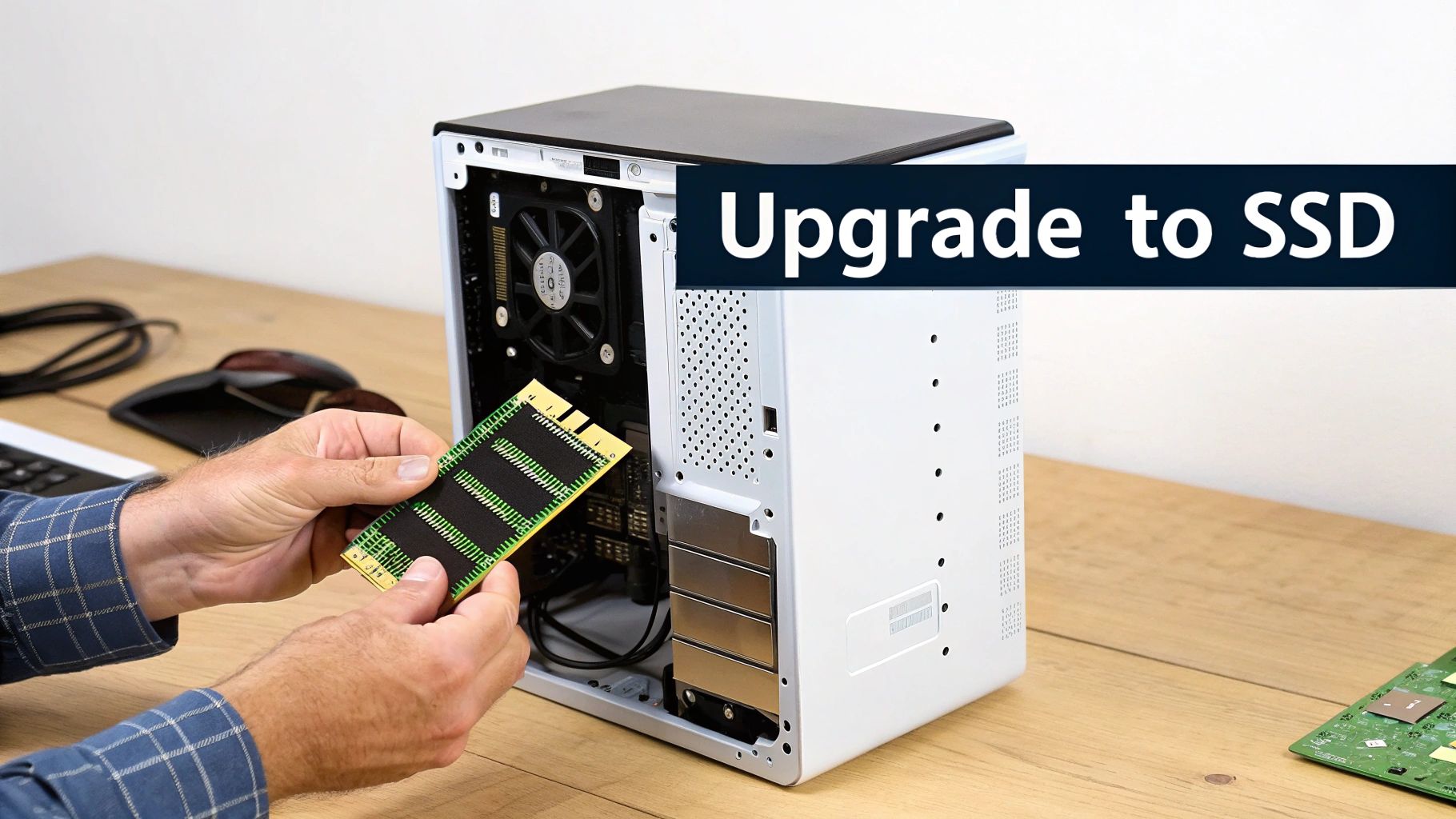
Sometimes, no amount of software cleanup will fix the real problem. You've cleared the clutter and optimized startups, but your team's computers still feel like they're trudging through mud. That’s a tell-tale sign the hardware itself has become the bottleneck.
For many small and midsize businesses, the thought of hardware upgrades can feel daunting. It brings to mind high costs, technical complexity, and the potential for disruption. But it doesn't have to be that way.
A couple of strategic, cost-effective upgrades can breathe new life into your existing workstations, extending their lifespan and delivering a serious productivity boost. The trick is knowing where to invest your budget for the biggest impact.
For most business computers, the conversation boils down to two key components: RAM (Random Access Memory) and storage. Understanding what each one does is the first step toward making a smart investment.
RAM: The Key to Smooth Multitasking
Think of RAM as your computer's short-term memory or its active workspace. It’s where every application, file, and process you're currently using is held for quick access. With enough RAM, your employees can jump between email, a complex spreadsheet, and a browser with two dozen tabs open without a hitch.
When you don't have enough, the computer is forced to use a piece of your much slower main storage drive as a temporary substitute. This is exactly why a machine grinds to a halt during heavy multitasking. Suddenly, that simple act of switching between windows becomes a frustrating, lag-filled ordeal.
When should you upgrade RAM?
- Constant Freezing: Applications regularly become unresponsive when multiple programs are running.
- Slow App Switching: Moving between active windows is noticeably sluggish.
- Heavy Workloads: Your team uses memory-hungry software like graphic design tools, large databases, or specialized industry applications.
For most modern business use, 16GB of RAM is a solid baseline. If your team's work involves large datasets or creative software, bumping that up to 32GB is a worthwhile investment that pays dividends in daily efficiency.
Storage: The Foundation of System Speed
While RAM is all about multitasking, your storage drive—the hard drive or solid-state drive—affects just about everything else. It dictates how quickly the computer boots up, how fast applications launch, and how long it takes to open and save large files.
If any of your workstations are still running on older, mechanical Hard Disk Drives (HDDs), this is the single most impactful upgrade you can make. An HDD works with a physical spinning platter and a mechanical arm that has to find the data. In contrast, a modern Solid-State Drive (SSD) uses flash memory with no moving parts, making it exponentially faster.
The jump from an HDD to an SSD is the difference between waiting minutes for a computer to start and having it ready to go in seconds. It’s a night-and-day change that your team will feel immediately.
Insufficient RAM or slow storage drives can be responsible for a huge percentage of performance slowdowns in business settings. And with Windows 10 support ending in October 2025, many businesses are facing necessary upgrades. At Eagle Point Technology Solutions, we specialize in optimizing these components, preventing the bottlenecks that can slash productivity.
The Hidden Performance Killer: Security and Malware
You’ve tried all the usual tricks—software tweaks, hardware upgrades—but a computer is still mysteriously slow. What’s going on? Before you give up, there’s one more culprit to investigate: a security threat running silently in the background.
It’s an unsettling thought, but malware, spyware, and even aggressive adware don’t announce their arrival. They dig themselves deep into the operating system, quietly chewing up CPU cycles, hogging memory, and flooding your network connection. We’ve seen powerful machines brought to their knees by these unwanted passengers.
For a small or midsize business, the consequences hit twice as hard. First, there's the immediate productivity loss from a sluggish workstation. But second, and far more critically, that slowdown is often the only visible symptom of a deeper security breach that could be stealing data or setting the stage for a ransomware attack.
Spotting the Signs of an Infected System
Malware-induced slowdowns often come with specific, tell-tale symptoms. While no single sign is a smoking gun, a combination of them should raise a red flag.
Keep an eye out if your team reports any of these issues:
- Sudden and Unexplained Sluggishness: A computer that was perfectly fine yesterday is suddenly crawling today, with no new software installed.
- Constant Disk Activity: The disk light is blinking nonstop, even when the computer should be idle.
- Unusual Network Traffic: The machine is sending or receiving large amounts of data when nobody is actively using it for downloads or uploads.
- Frequent Crashes or Errors: Applications start crashing more often, or you see bizarre error messages you’ve never encountered before.
- New Toolbars or Pop-ups: Unwanted toolbars have suddenly appeared in your web browser, or random pop-up ads are showing up on your desktop.
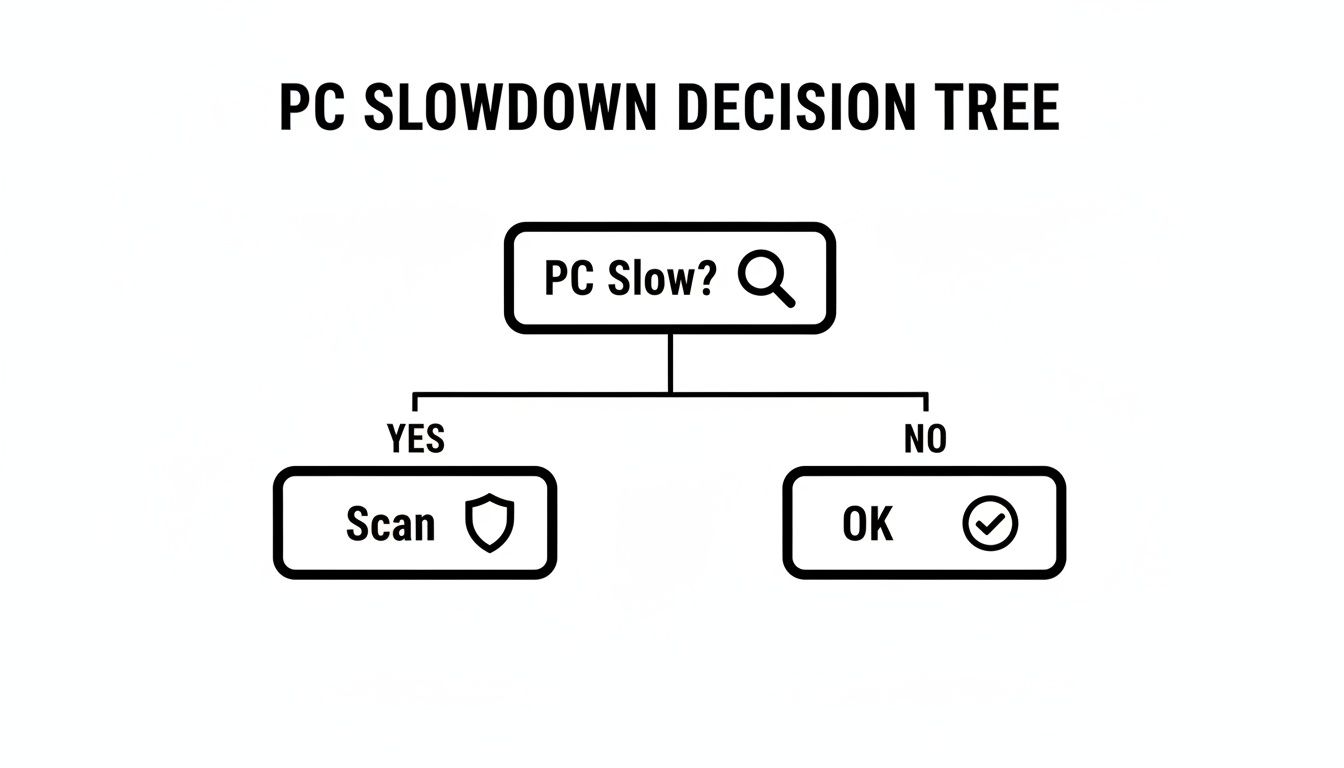
If you suspect an infection, your first move should be to run a full system scan using a reputable, business-grade security application. A free, consumer-grade tool simply doesn't have the robust detection and removal capabilities needed to properly protect a business network.
A secure computer is a fast computer. Proactive, layered security doesn’t just protect your data—it prevents the performance-draining infections that bog down your team and disrupt your workflow.
From Reactive Scans to Proactive Defense
Running a scan after you suspect a problem is playing defense. A much smarter strategy for any business is to prevent malware from ever getting a foothold in the first place. This is where a layered security approach—a core part of our philosophy at Eagle Point—is absolutely essential.
This means moving beyond basic antivirus. A truly robust defense includes a business-class firewall, email filtering to catch threats before they even land in an inbox, and proactive monitoring. This kind of setup stops malicious processes from ever running, ensuring your system resources are dedicated to your work, not to fighting off hidden intruders. By keeping your systems clean from the start, you inherently improve computer performance.
To get a better sense of what a strong defense looks like, you can learn more about choosing the best antivirus for your small business in our detailed guide. It's a critical first step in building a secure—and fast—IT environment.
Future-Proofing Your Business With Proactive IT Management